
| Key Pointer |
|---|
| • QuickBooks AST calculates rates when invoices and sales receipts are created inside QBO |
| • The Sales Tax Center tracks liability by agency but does not file returns |
| • QBO monitors Nexus within QuickBooks only, not across other sales channels |
| • Manual rate updates are required when state tax rules change |
| • Product taxability errors are one of the most common QBO miscalculation causes |
| • Filing and remitting sales tax returns remains the business's full responsibility |
| • Galvix connects to QuickBooks and handles full compliance end-to-end for your team |
QuickBooks Online's Automated Sales Tax (AST) feature is a practical starting point for businesses with simple tax liability obligations and limited state exposure. For a business operating in one or two states with straightforward product taxability, the built-in sales tax feature can reduce the manual effort required to calculate the correct sales tax rate on each invoice or sales receipt.
The complexity grows significantly as businesses expand into multiple states, add ecommerce channels, or trigger economic Nexus obligations. At that stage, relying solely on QuickBooks sales tax creates operational gaps in registration, Nexus tracking, filing, remittance, and exemption certificate management. Many growing businesses move to managed compliance platforms like Galvix, which combine sales tax automation with done-for-you compliance support across all 50 states.
For businesses evaluating whether QuickBooks Online AST is sufficient for their current setup, this guide explains how the automated sales tax feature works, how to configure it correctly, where it commonly fails, and when it makes sense to move to a more complete sales tax compliance solution.

What Is Automated Sales Tax in QuickBooks Online?
QBO automated sales tax is a built-in sales tax calculation engine that applies sales tax rates to invoices and sales receipt transactions based on customer address and product type. It handles rate lookup across supported jurisdictions, replacing the older manual sales tax configuration that required entering rates by hand.
However, businesses should still review QBO outputs carefully because known accuracy issues can affect local rates, product taxability, and jurisdiction-level calculations. For growing sellers, these gaps can create incorrect tax amounts even when automated sales tax is enabled. The automatic sales tax engine does not file sales tax returns, monitor Nexus exposure across all channels, or register your business in new states. It generates a sales tax liability report for review, yet that report is rarely ready for direct filing because each state requires data in different formats.
Finance teams must manually convert QBO report data into the required fields for each state portal before submission. This makes filing time-consuming and error-prone, especially for businesses registered in several states.
How Does QuickBooks Calculate Sales Tax on Each Transaction?
QuickBooks sales tax applies rates based on a combination of factors evaluated when each invoice or sales receipt is created. The first thing the system checks is the customer address associated with the transaction.
- Customer Address Determination: QuickBooks Online (QBO) applies sales tax based on the shipping address entered on the invoice. When no shipping address is present, it defaults to the billing address, which may sit in a different state agency jurisdiction than the delivery location.
- Product Tax Category Check: The platform determines taxability using the tax categories or sales tax categories assigned to each product or service record. It applies the applicable tax rate for that category in the customer's state.
- Rate Updates from Published Data: QBO updates its sales tax rate database when state or local jurisdictions change published rates. Product taxability rulings are not always updated simultaneously across all states.
- Sales Tax Liability Report Generation: After each period, the software generates a sales tax liability report summarizing the tax amount owed by agency name for the finance team to review before manual filing.
What QuickBooks Sales Tax Does Not Cover?
The QuickBooks sales tax calculation engine addresses transaction-level math, yet it does not cover the full compliance workload. Four critical functions remain outside the new sales tax system in QBO. These gaps become important once businesses operate across multiple states.
Nexus monitoring is one of the biggest limitations. QBO’s Nexus analysis has known accuracy gaps because state-specific threshold rules, exemptions, and special conditions may not be reflected correctly. It also processes only QuickBooks transactions, so revenue from Shopify, Amazon, Stripe, or other external channels remains outside its view.
That missing visibility creates the next compliance gap, i.e., state registration. When Nexus is triggered, QBO does not guide businesses through sales tax permit applications. Each state has its own registration process, making permit setup confusing, time-consuming, and difficult to manage without specialist support.
Filing also remains manual after setup. Businesses must reconcile the QBO sales tax liability report with each state portal’s return format, then convert report lines into state-specific filing fields. This process can create errors when jurisdiction breakdowns, deductions, exemptions, or local tax details do not match the portal structure.
Exemption certificate management is also outside QBO's scope. The platform can mark a customer as tax-exempt, yet it cannot collect, validate, store, or track certificate expiration dates. This leaves the documentation burden with the business during audits or exemption reviews.
Read more: BigCommerce Sales Tax Guide for Ecommerce Sellers
How to Set Up Automated Sales Tax in QuickBooks Online?
Setting up automated sales tax in QuickBooks Online requires completing five configuration steps in the correct order. Skipping or rushing any step is one of the most common causes of incorrect sales tax calculation after activation.
Step 1: Access the Sales Tax Center Inside QuickBooks Online
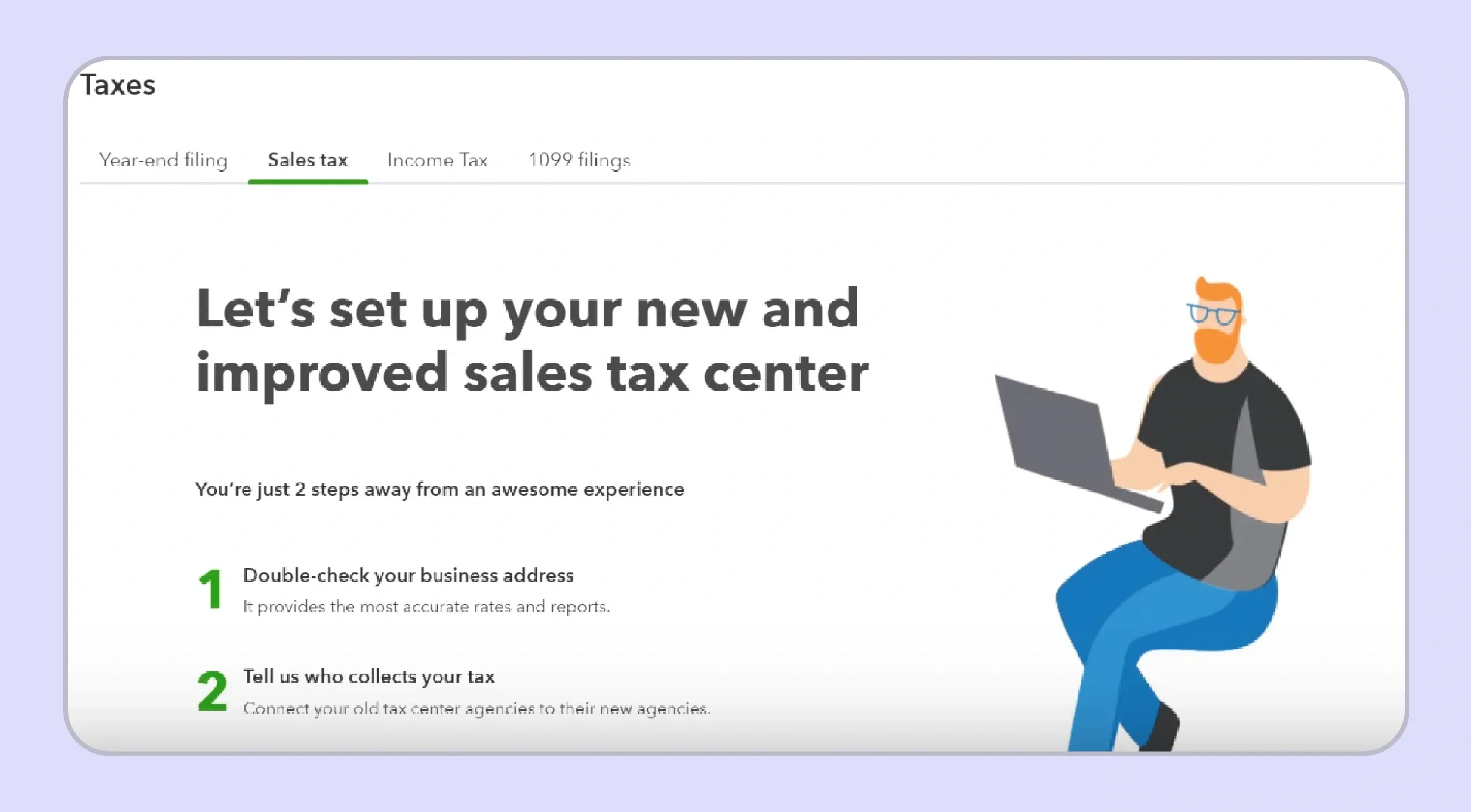
The sales tax center is your starting point for all QuickBooks sales tax configuration. Navigate to Taxes in the left menu and select the Sales Tax tab to open the central hub for all agency configuration and liability tracking.
If your account was created before QBO's 2024 default AST rollout, you may see a prompt to switch from manual sales tax to automated sales tax. Select ‘Use Automated Sales Tax’ or ‘Get Started’ to proceed. All new QuickBooks Online account setups have the feature enable sales tax activated by default as of that update.
Step 2: Confirm Your Business Address and Primary Selling Location
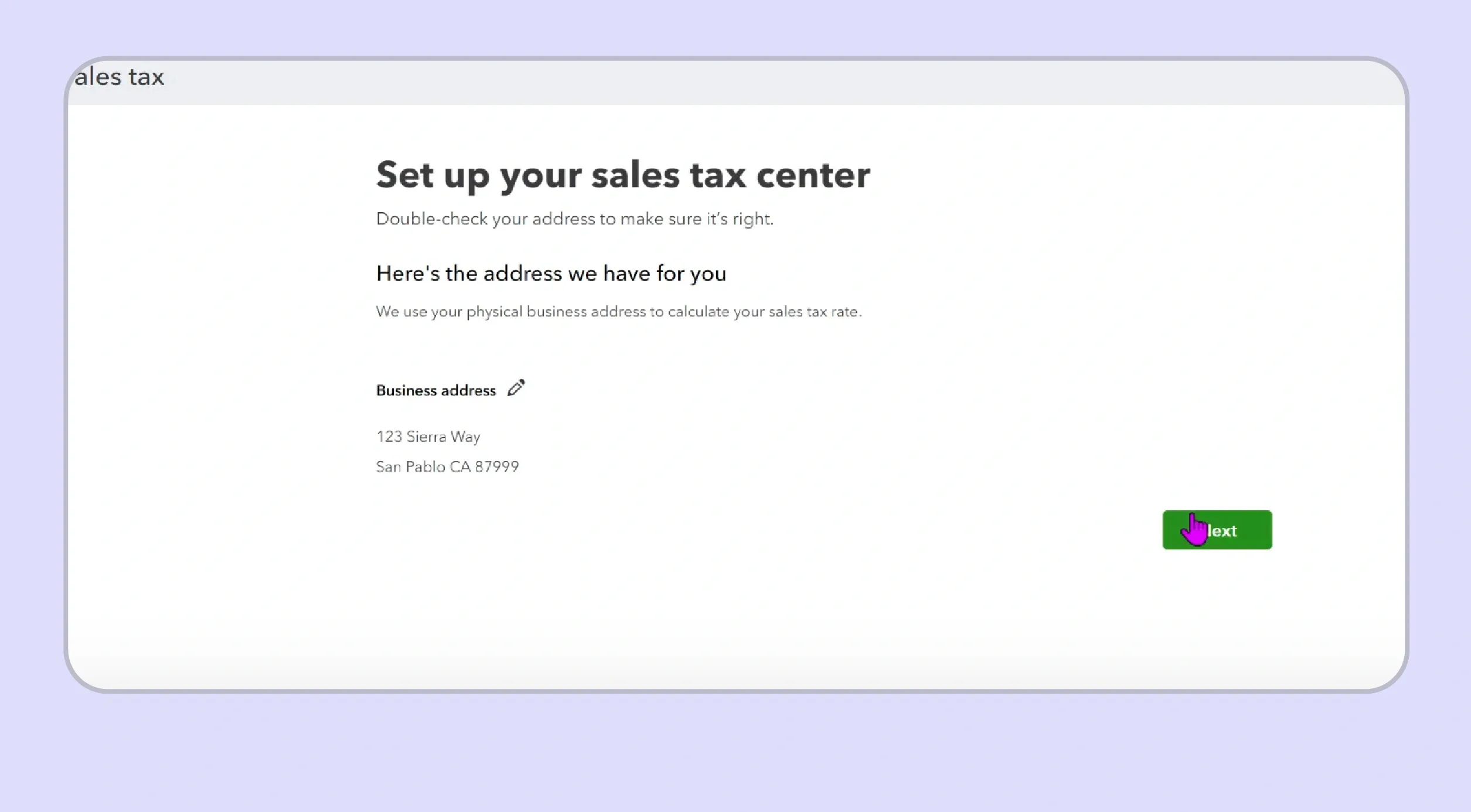
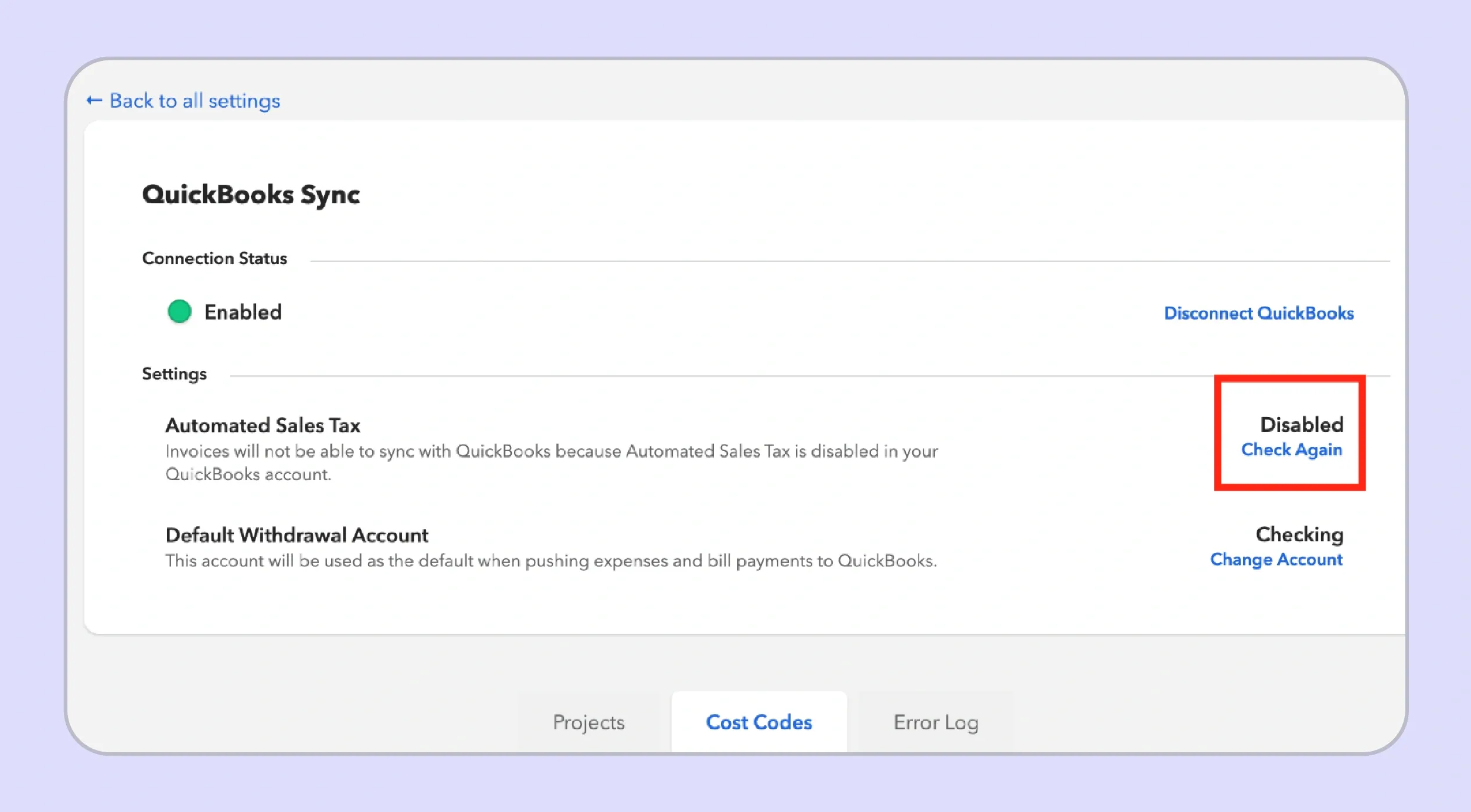
Your business address is the foundation of every sales tax rate QBO assigns to your transactions. QBO uses this business location to identify your primary tax agency name and set the default state sales tax agency for your account.
Verify the address carefully before proceeding to the next step. An incorrect city or ZIP code causes QBO to apply the wrong total sales tax rate to every invoice issued from that business location until the error is identified and corrected by editing sales tax settings.
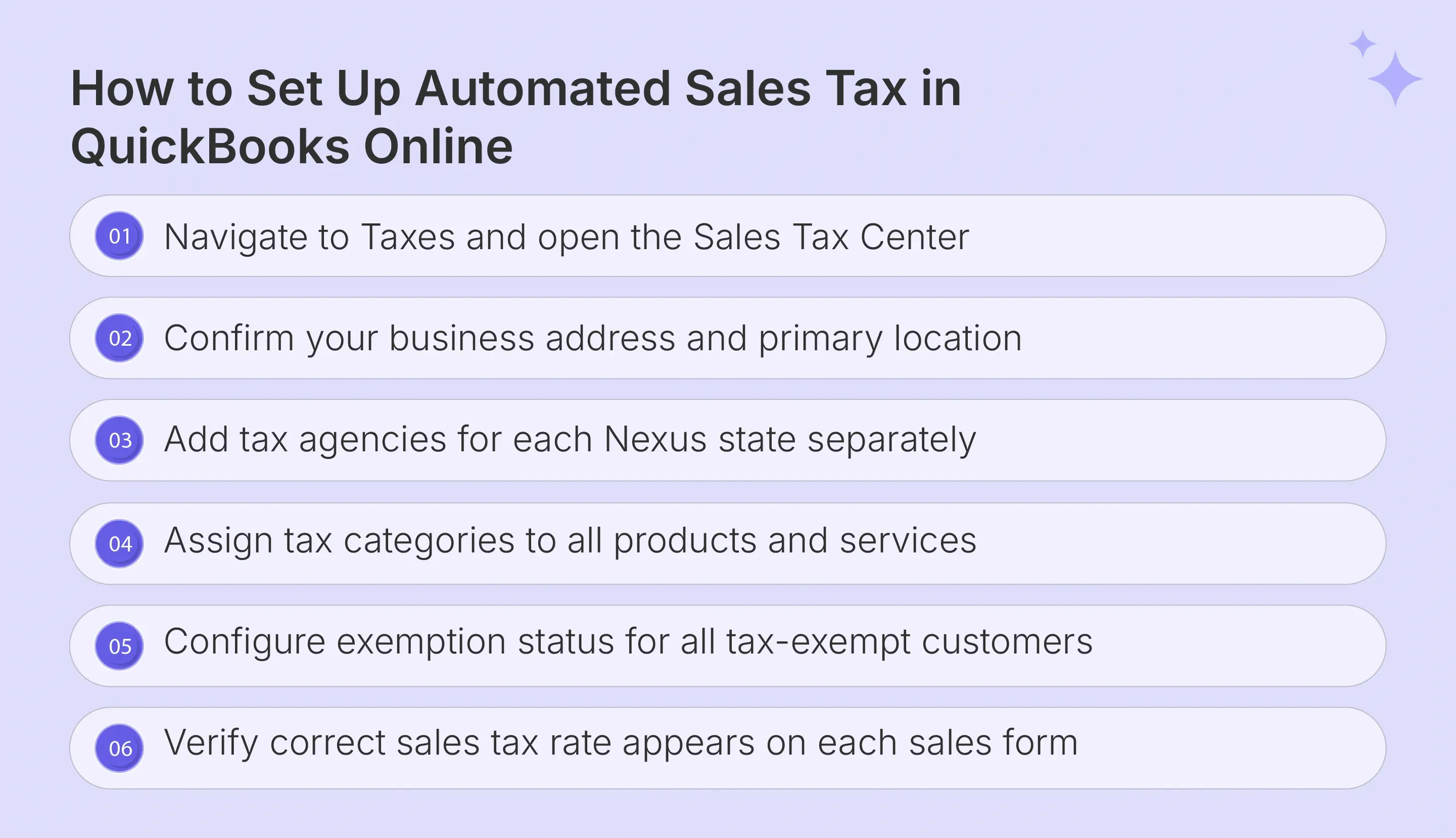
Step 3: Add Tax Agencies for States Where You Have Nexus
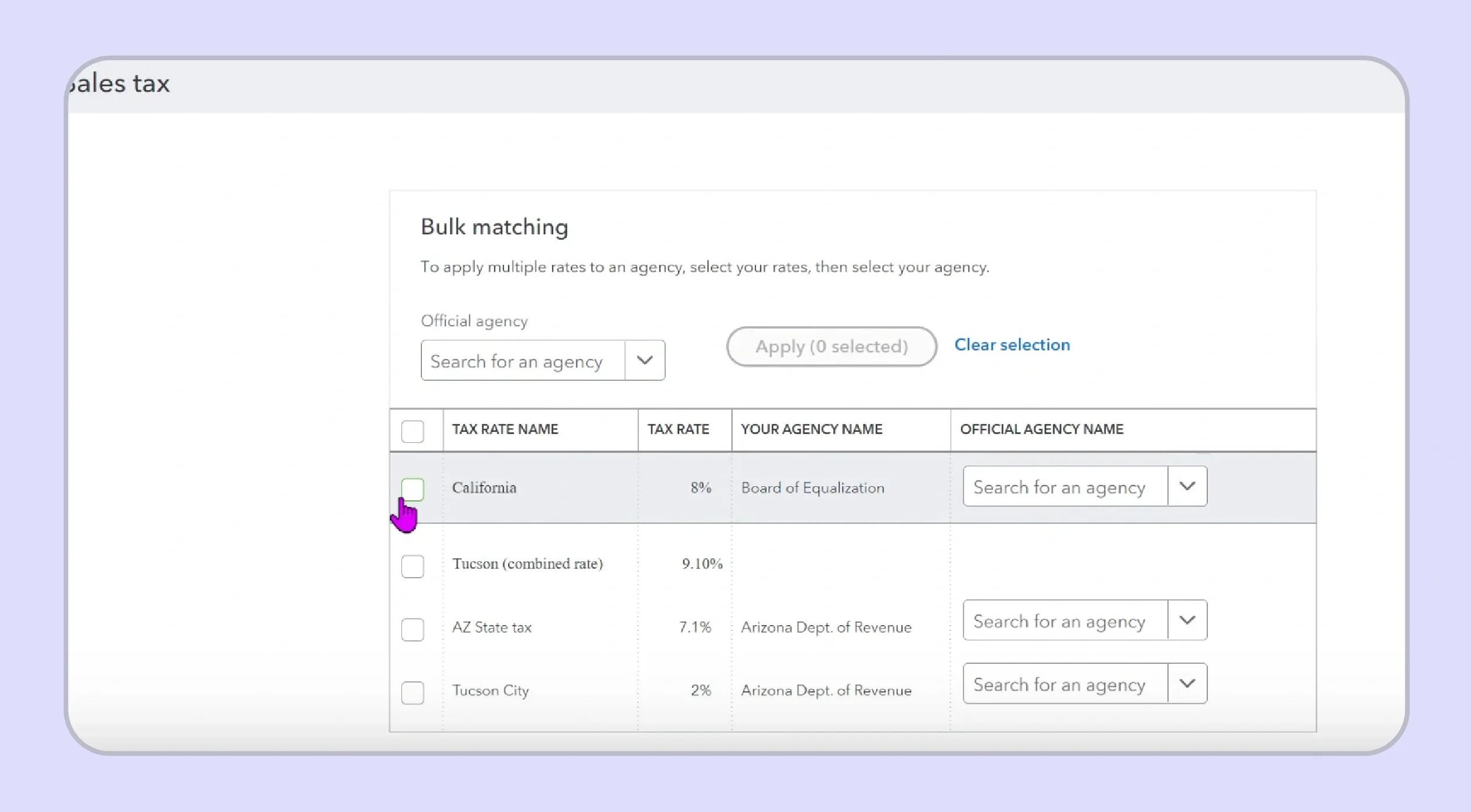
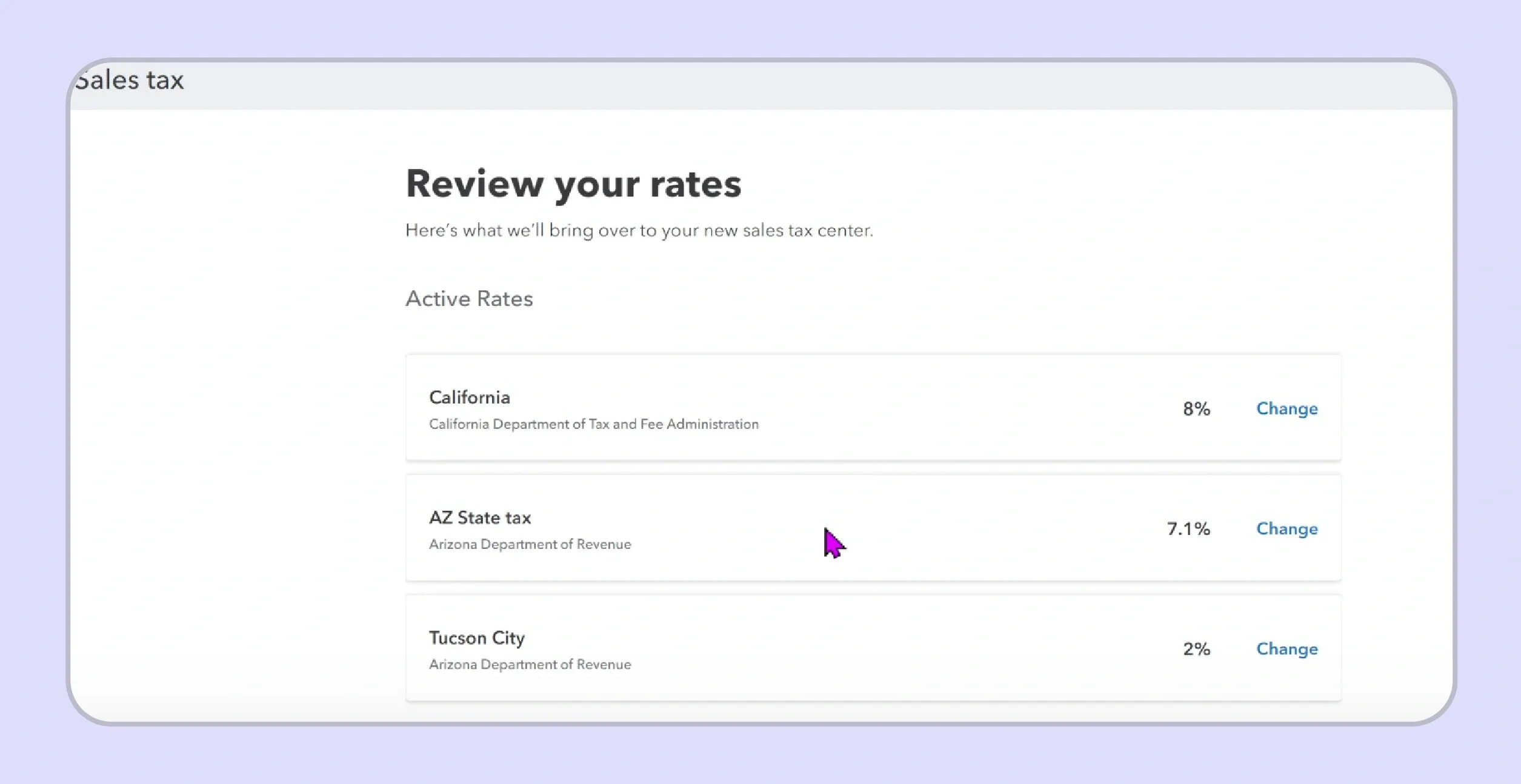
Once your home state agency is confirmed, you can add additional tax agencies for every other state where your business has a sales tax permit and a registered collection obligation. Click ‘Add Agency’ and search for each state by tax name or agency name to configure the correct rates.
Each agency name you add enables QBO to apply the appropriate single tax rate or combined tax rate for sales to customers in that jurisdiction. Add agencies only for states where you are already registered; QBO does not manage registration or flag when you should register in a new state.
Step 4: Assign Tax Categories to Products and Services
Every product and service record in QBO must have assigned sales tax categories that indicate whether the item is taxable, exempt, or subject to special taxes or a reduced rate in applicable states. Open each product record, locate the sales tax field, and select the appropriate category from QBO's predefined list.
Incorrect tax category assignment is one of the most frequently documented causes of QBO sales tax miscalculations. A SaaS subscription miscategorized as a physical product, or a digital service assigned the wrong tax rate name, applies an incorrect sales tax amount on every invoice in every state where those rules differ from QBO's defaults.
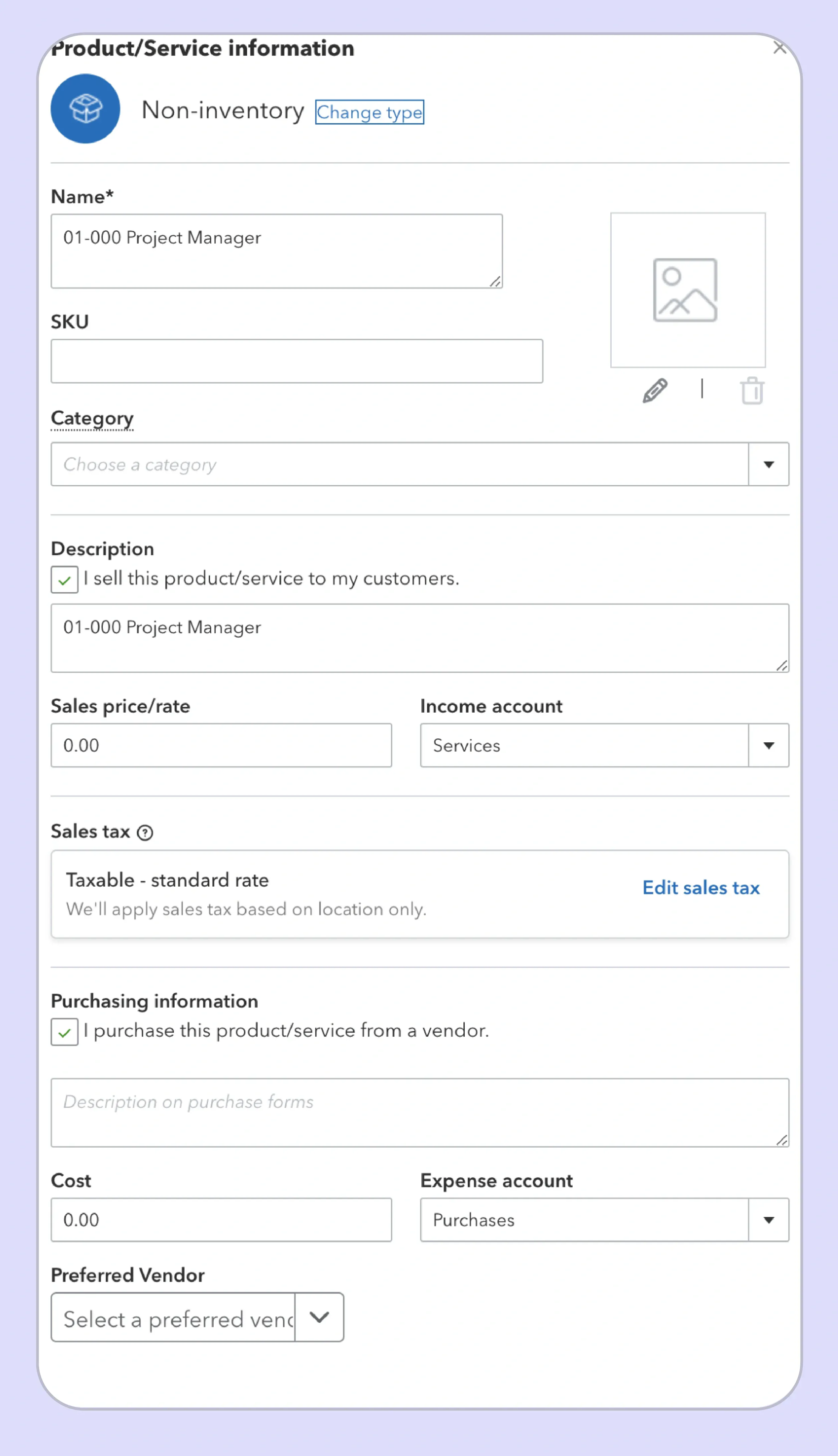
Step 5: Configure Exemption Status for Tax-Exempt Customers
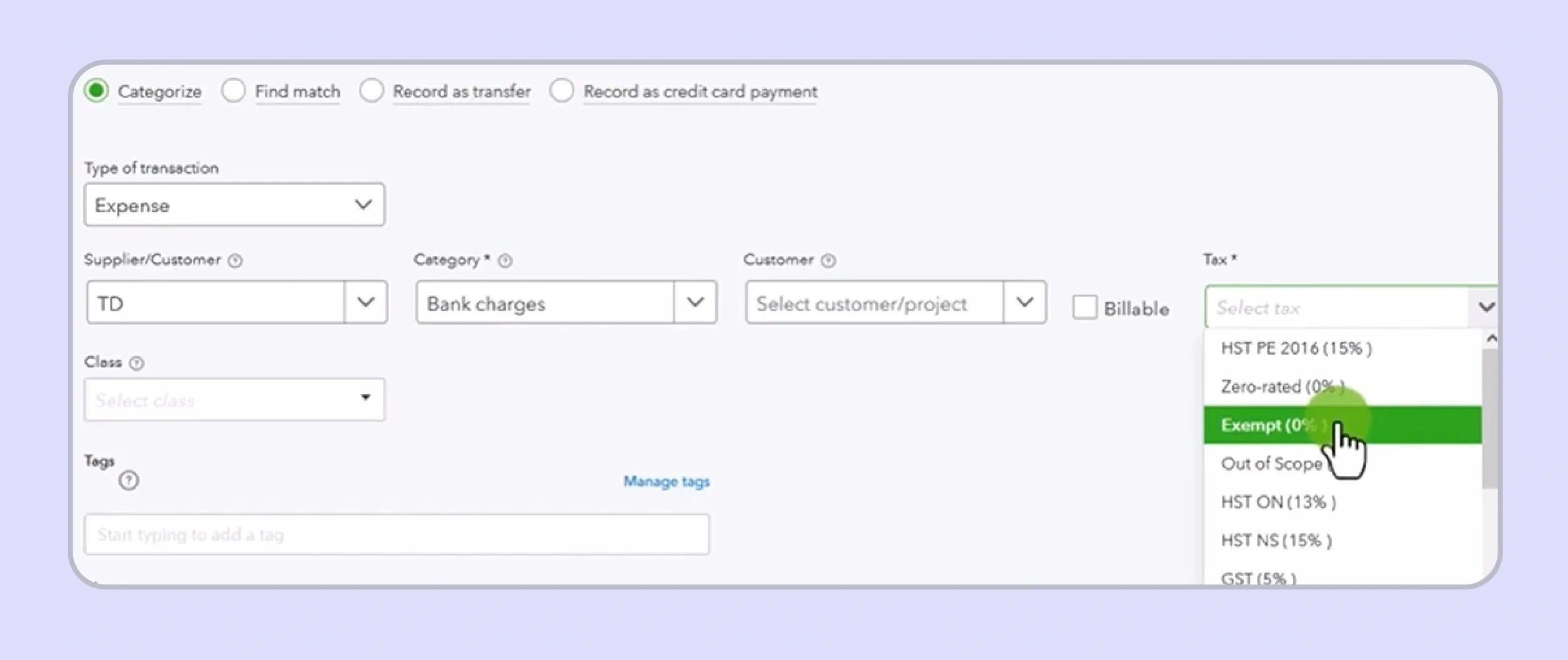
For customers who qualify for tax exemption, open the customer record, select Additional Info, and check the tax-exempt checkbox. Select the reason for exemption from the dropdown to complete the configuration so QBO applies zero sales tax amount to future sales forms for that customer.
QBO does not store or validate exemption certificates in this workflow. The correct sales tax exemption is applied to invoices going forward, yet the underlying certificate documentation must be collected, stored, and managed separately by your team outside the QuickBooks sales tax system.
Read more: Stripe Sales Tax Automation Guide
Why Is QuickBooks Not Calculating Sales Tax Correctly?
QuickBooks sales tax miscalculations originate from four configuration issues that affect the engine's ability to apply the correct sales tax rate. Each one has a distinct cause and a direct fix within QBO sales tax settings.
Incorrect Product or Service Tax Category Assigned in QBO Settings
QBO applies taxability rules through the sales tax categories assigned to each product or service record. When a product is assigned the wrong category, the total sales tax on every invoice can be inaccurate. This error begins from the moment the configuration is saved.
A SaaS subscription included with physical goods can distort sales tax amounts across multiple states. A service assigned to the wrong tax categories bucket can create similar collection gaps. Review product records against active tax rules, then edit tax rates where classification changes are required.
Missing, Incorrect, or Incomplete Customer Address on Invoices
QBO calculates tax using the shipping address entered on each invoice. When no shipping address is present, QBO may use the billing address instead. This can apply the correct sales tax rate to the wrong jurisdiction.
An outdated customer address can distort tax on recurring invoices and other sales forms. This issue becomes larger when customers operate across branches or delivery locations. Verify every shipping address before billing to reduce errors in the state sales tax rate.
Tax Agency Not Configured for States Where You Have Nexus
If a state agency is missing in the sales tax center, QBO may apply zero tax to that jurisdiction. This can happen even when the business already holds a sales tax permit. The result is under-collection on future transactions.
This creates a compliance gap when the economic Nexus is triggered in new states. Add the tax agency name through edit sales tax settings for every registered state. Confirm the total sales tax rate before the next step in your billing cycle.
Product Taxability Rules Vary by State and Change Without Notice
A product taxable in one state may qualify for special taxes, reduced treatment, or exemption elsewhere. QBO may update published rates, yet product taxability can still need review. This matters when rules differ across different states.
Complex jurisdictions can create QuickBooks sales tax errors when local rules are difficult to map. Colorado home-rule cities are a common example for multi-state sellers. Finance teams should verify product taxability outside QBO before relying on built-in sales tax calculation outputs.
Does QuickBooks Automatically File Sales Tax?
QuickBooks sales tax does not file or remit returns automatically on your behalf at any subscription tier. The sales tax liability report generated by QBO summarizes the total sales tax owed by agency name and reporting period. But it serves as a reference document rather than a filed return.
The structure of the QBO sales tax liability report creates a significant practical challenge beyond the filing gap itself. State portals ask for sales tax data in specific field formats that rarely match how QBO presents its report data. A finance team member must interpret what each state portal field requires, then manually translate the QBO output line by line into the state's format. This process is both time-consuming and error-prone, particularly for businesses filing in five or more different states each period.
- Manual Portal Submissions Required: Businesses must log into each state agency portal individually and submit sales tax returns with the correct breakdown for each jurisdiction before the sales tax due date.
- No Filing Deadline Monitoring: QBO does not track filing deadlines, send compliance reminders, or manage remittance schedules across states as the business's sales tax obligations grow.
- Payment Reconciliation Is a Manual Step: After pay sales tax submissions are made, businesses must reconcile bank account records against each state's confirmation independently; QBO does not manage this step.
Read more: WooCommerce Sales Tax Guide for Store Owners
Turning On Automated Sales Tax in QuickBooks Online
Go to Taxes in the left menu, select Sales Tax, then choose Get Started or Use Automated Sales Tax if prompted. QBO will ask you to confirm your business address before activation. It may also ask you to map existing manual sales tax rates to the correct tax agencies.
If your account has fewer than 20 existing tax rates, QBO requires all rate mappings before activation. Once enabled, the automated sales tax engine replaces the manual sales tax setup. The new sales tax system then applies to all future sales forms created in the account.
Turning Off Automated Sales Tax in QuickBooks Online
QBO automated sales tax cannot be fully reversed once activated within a QuickBooks Online account. The option to return to the earlier manual sales tax setup is no longer available. Businesses should review this limitation before switching from the prior workflow. If a business needs to stop tax calculation, it can mark active tax agencies as inactive in sales tax settings. This prevents future tax from being applied to sales forms. Historical sales tax liability report data and prior taxable sales records remain available for review.

What Are the Key Limitations of QuickBooks Online Automated Sales Tax for Growing Businesses?
The QBO automated sales tax feature helps with invoice and sales receipt calculations inside QuickBooks Online. However, known issues around stale rates, incorrect local tax application, and product taxability gaps can still affect transaction accuracy.
- No Economic Nexus Monitoring Across States Outside QBO: QBO tracks QuickBooks sales tax only on transactions entered within the platform. This leaves all revenue from external channels invisible to threshold tracking across different states.
- Known Nexus Analysis Accuracy Gaps: QBO may not account for state-specific threshold exclusions, exemptions, and special Nexus conditions. This can result in inaccurate Nexus determination for businesses operating across several jurisdictions.
- Absence of State Registration Support When Nexus Is Triggered: When a business crosses an economic Nexus threshold, QBO provides no guidance, tooling, or assistance in obtaining a sales tax permit from the relevant state agency.
- Lacks Automated Filing or Remittance Across Any States: The sales tax return filing and remittance process remains fully manual for every state agency in which the business is registered. This happens regardless of how many states are active in QBO.
- No Exemption Certificate Storage or Validation: QBO allows a customer to be marked exempt in the customer record. Yet the underlying certificate collection, validation, and tracking of sales tax audit documentation remain unmanaged by the platform.
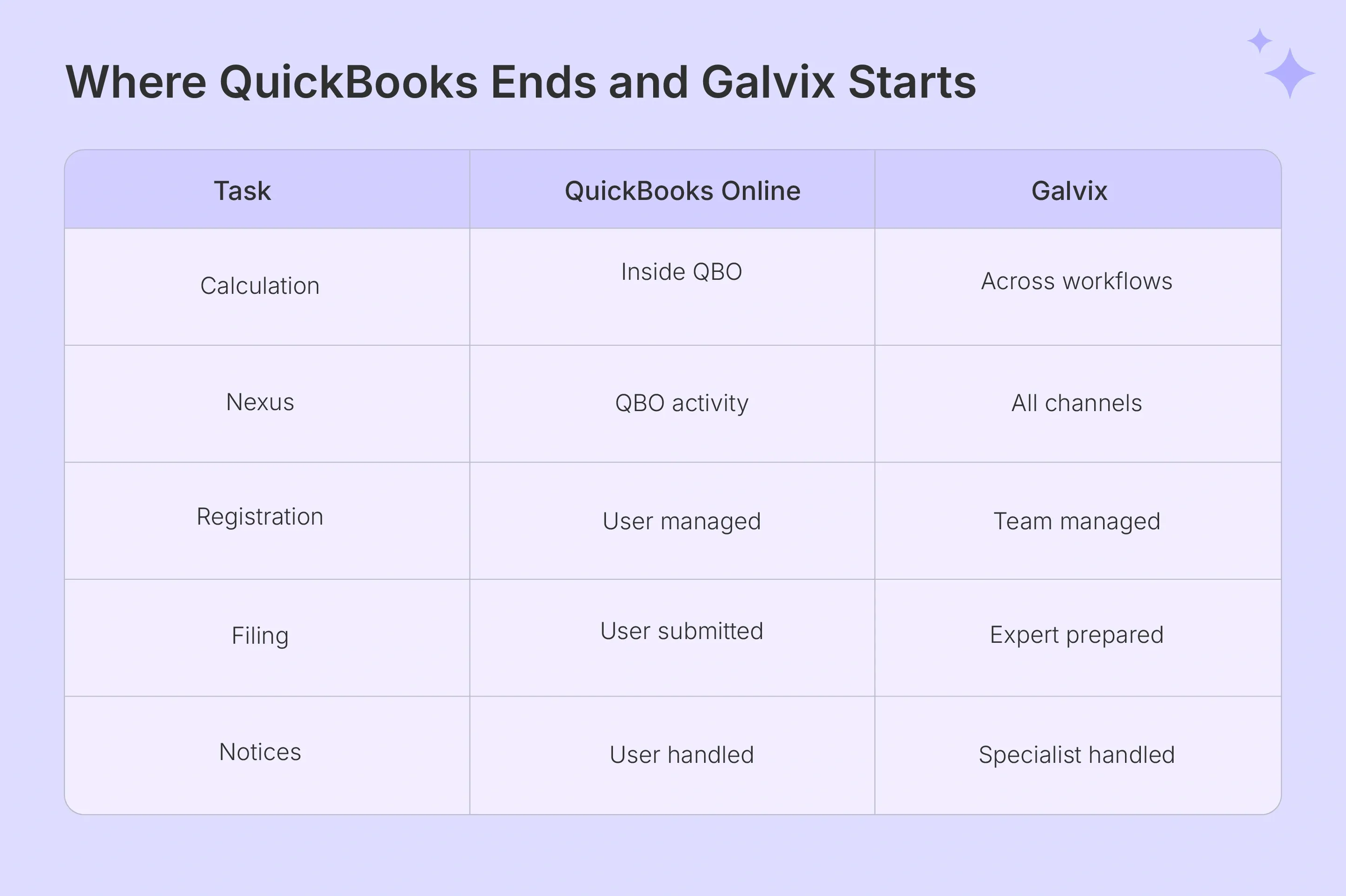
Why Is Galvix a Better Sales Tax Solution for Businesses That Have Outgrown QuickBooks Online?
QuickBooks Online's automated sales tax works well for businesses selling through limited channels in a few states with simple product taxability. As operations expand across states and platforms, the sales tax compliance obligations become harder to manage within a calculation-focused system. This leaves filing, Nexus monitoring, and registration entirely with the finance team.
Galvix closes this gap with fully managed QuickBooks sales tax compliance across all 50 US states and connected sales channels. Human tax specialists review every return, proactively monitor Nexus thresholds, complete registrations, and respond directly to state agency notices before issues escalate. Our sales tax software tracks tax liability across all channels simultaneously rather than relying on the business to aggregate data from multiple systems and interpret how much tax is owed in each state's jurisdiction.
Here is what Galvix delivers that QBO automated sales tax cannot:
Human specialist review on every return before state submission catches errors before they become penalties. This creates a verified audit trail for sales tax returns filing across all registered states.
- Nexus monitoring across Shopify, Stripe, Amazon, QuickBooks, and your ERP simultaneously with threshold alerts at 75%, 85%, and 95%. So, your team acts before any new sales tax obligation is formally triggered.
- Done-for-you state registrations when Nexus is triggered, managed end-to-end by the Galvix compliance team. All related tasks handled, including portal work, credential management, and follow-up correspondence.
- Full management of all state correspondence, including discrepancy notices, audit inquiries, and filing frequency changes. Information delivered to your team as dashboard updates rather than state letters requiring internal drafting.
- Transparent per-state pricing per month covering filing, notice management, and a dedicated account manager with no hidden fees for tax rate updates, Nexus monitoring, or correspondence management.
Schedule a personalized demo to see what fully managed QuickBooks sales tax compliance with Galvix looks like for your business.
Frequently Asked Questions
How to Turn Off Automated Sales Tax in QuickBooks Online?
Automated sales tax in QuickBooks Online cannot be permanently disabled once activated in the account. To stop sales tax from applying to sales forms, navigate to the sales tax center, open sales tax settings, and mark each active tax agency as inactive. Historical sales tax liability report data and prior period records remain accessible after deactivating all active agencies.
How to Set Up Automated Sales Tax in QuickBooks Online?
Navigate to Taxes, select the Sales Tax tab, and choose ‘Get Started’ or ‘Use Automated Sales Tax’ if prompted in your QuickBooks online account. Confirm your business address, add tax agencies for all states where you hold a sales tax permit, and assign sales tax categories to every product and service record. Galvix replicates and manages this sales tax setup on your behalf during onboarding.
How to Turn On Automated Sales Tax in QuickBooks Online?
Go to Taxes and select the Sales Tax tab in the QuickBooks Online left navigation menu. Select ‘Get Started’ or ‘Use Automated Sales Tax’ from the sales tax center prompt if the new sales tax system has not already been activated in your account. The enable sales tax toggle is set by default for all accounts created after 2024, and activation applies to all future sales forms immediately.
Why Is QuickBooks Not Calculating Sales Tax Correctly?
The most common causes are incorrect sales tax categories assigned to products or missing or inaccurate customer addresses on invoices. Other reasons for incorrect QuickBooks sales tax calculations include not configuring the state tax agency in sales tax settings and outdated product taxability rules across different states that QBO has not yet updated in its sales tax rate database. Each requires a targeted fix within the edit sales tax settings to resolve for future transactions.
Does QuickBooks Automatically File Sales Tax?
QuickBooks sales tax does not file or remit returns automatically at any subscription level. The platform generates a sales tax liability report for review at the end of each period. But submitting sales tax returns to each state agency and remitting payments through the bank account integration remain fully manual processes. On the other hand, Galvix handles preparation, review, filing, and remittance across every registered state on your behalf.