
For years, Shopify filed your sales tax returns in the background, and you hardly had to think about them. Every return sat in your admin, ready whenever you needed proof of what you had filed.
That safety net disappears on April 30, 2027, when Shopify stops offering downloads of the historical records from its automated filing service. Shopify will continue to calculate tax at checkout, but the returns it filed across several states and years will no longer be a click away.
Those returns record what each state received, and they are the first documents you will reach for when an auditor questions an old filing. Losing them means rebuilding years of filings from raw order data, often under a deadline set by the state and not by you.
This guide shows how to download Shopify tax filing records, which supporting documents to keep, and what to check before your old filing arrangement closes.

What Happens to Your Shopify Filing Records After April 30, 2027?
Shopify will file its last eligible returns in early 2027, covering sales through December 31, 2026 for most sellers. After April 30, 2027, Shopify's download window for those historical filing records closes, so do not count on Shopify for copies after that date.
The rest of Shopify Tax continues to run after the deadline. Shopify will still calculate sales tax at checkout and produce sales tax reports. Only the automated filing stops, so you will need a new arrangement for future returns.
Here is what will happen to the different records and features after that date:
| Shopify Record or Feature | What Happens After April 30, 2027? |
|---|---|
| Historical automated filing records | Shopify’s stated download window ends. |
| Previously filed return reports | Save your copies before the deadline. |
| Shopify Tax calculations | Continue for supported transactions. |
| Sales tax reporting | Continues through Shopify’s reporting features. |
| Automated return filing | Ends after the final eligible return. |
This difference is important as your regular sales reports cannot replace the actual documents Shopify submitted to tax authorities. A report may show how much tax your store collected, but it does not establish whether a return was filed.
How to Download Shopify Tax Filing Records?
You can download Shopify tax filing records from your existing account. Shopify keeps the documents inside its tax filing dashboard, where you can open individual returns and save their reports.
Follow these steps to complete the download:
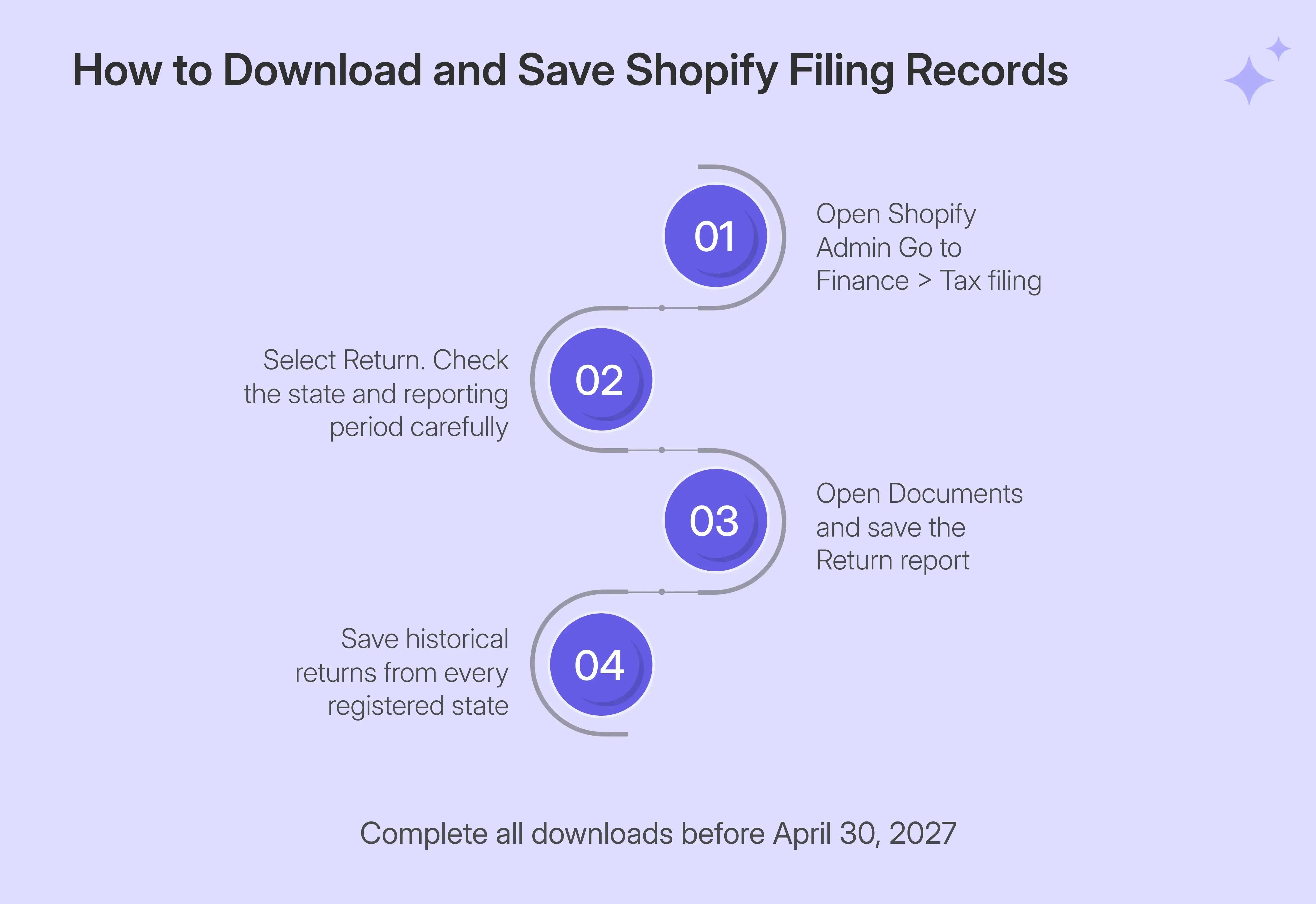
Step 1. Open Tax Filing in Your Shopify Admin
Sign in to the Shopify admin for the store that used automated filing.
From the main menu, go to Finance > Tax filing. This page shows the returns Shopify was scheduled to handle, along with details about their reporting periods and filing statuses.
If you manage more than one Shopify store, make sure you have opened the correct account. Each store has its own filing records, so you will need to review them separately.
Step 2. Select the Return You Want to Save
Open the tax return you want to download and check its details.
Look at the state, reporting period, filing frequency, and status. This helps you confirm that you are saving the correct document before moving to the next return.
For example, a monthly California sales tax return for December 2026 will be separate from the November return.
If your business files in several states, check each reporting period individually. This will help you save the correct documents without missing any returns.
Step 3. Download the Return Report
On the return details page, find the Documents section and select Return report. Shopify will provide the available report for that return, which you can save to your computer.
Use a filename that makes the document easy to find later. For example, California_December_2026_Return_Report tells you which state and reporting period the file belongs to.
Before moving on, open the downloaded file to make sure it is readable. You do not want to discover months later that a document was saved incorrectly.
Step 4. Repeat the Process for Every Historical Return
Return to the tax filing dashboard and open the next return you want to keep. Repeat the download until you have covered your monthly, quarterly, semi-annual, or annual filing periods.
To download Shopify tax filing records completely, check older years as well as the final returns Shopify will file in 2027. Your Shopify tax filing history may span several calendar years, depending on when automated filing began for your business.
Once you have finished, compare the saved files against the returns listed in Shopify. This final check will help you spot any missing documents before the download window closes.
Which Shopify Tax Records Should You Save?
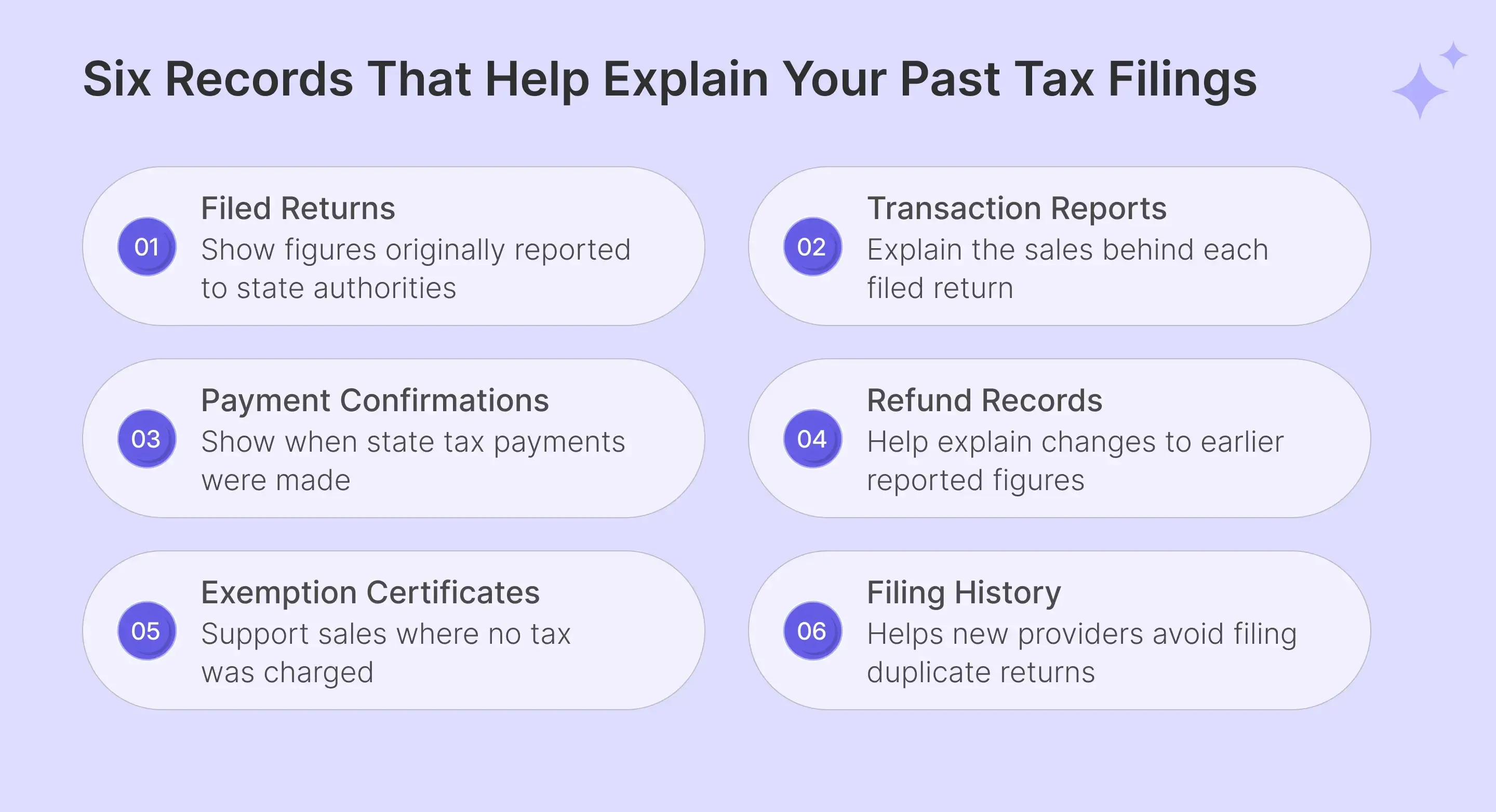
Start with the return reports, then save the records that explain them. Your Shopify tax filing records show what Shopify reported to each state, but they do not show how those figures were calculated. If a state asks which orders were included or whether a refund was adjusted, you will need the supporting tax information as well.
Here are the documents you should keep and how they can help you later.
| Record | Why You May Need It |
|---|---|
| Filed return reports | Check the sales and tax amounts reported to each state. |
| Filing dates and statuses | Confirm whether Shopify filed the return and when. |
| State payment confirmations | Check how much tax was paid and on which date. |
| Transaction-level sales tax reports | See which orders and tax amounts were included. |
| Refund and adjustment records | Check any changes made for canceled or refunded orders. |
| Exemption certificates | Support sales where customers were not charged sales tax. |
These documents rarely sit in one place. Payment confirmations usually reside in your state tax account, while sales tax exemption certificates may be stored elsewhere entirely. Once you have gathered everything, sort it by state and reporting period so you can find any document quickly.
Keep a backup in a secure location that your accountant or new filing provider can reach. Recordkeeping rules differ by state, so check how long each state requires you to keep records before deleting older records.
How to Export Shopify Sales Tax Reports Separately
A Shopify sales tax report shows the sales data and tax collected from your orders. However, it is different from a return Shopify has already filed with the state. You may need both documents to check earlier sales figures or prepare future returns.
Shopify's sales tax report provides a summary of sales and tax collected across different states. You can also check the amounts reported for individual tax jurisdictions.
Here is how you can download it from your Shopify admin:
- Go to Analytics - Reports in your Shopify admin.
- Filter by Finances and open the United States sales tax report, if available.
- Select the state and date range you want to review.
- Export the available transaction details as a CSV file.
Shopify lets you export one month of data at a time from this report, so six months of records means six separate files. For sales before July 1, 2024, use the Taxes finance report instead.
With the exports in hand, you can check gross sales, exempt transactions, and sales tax collected in each state, then compare them with the totals in your other Shopify reports. Any difference you spot here is one you can fix before it reaches a return.
The United States sales tax report is built for eligible US Shopify Tax stores. If you also sell in other regions, such as the United Kingdom, check your value-added tax (VAT) reports separately.
These reports also cover only transactions recorded in Shopify. If you sell through Amazon or wholesale channels, you will need to combine sales from every channel before preparing a complete return. And since no transaction report confirms that Shopify filed or paid a state return, you still need to export Shopify tax filing records separately.
Why Should You Keep Your Shopify Filing History?
Your saved documents are useful when someone needs to review a return filed months or years earlier. For most Shopify merchants, this happens during a state review, while correcting an earlier return, or when another provider takes over filing.
Here are three situations where retaining the original documents can make a difference:
State Audits May Require Earlier Filing Records
Suppose your store reported $40,000 in sales on a return, and the state's records show a different amount. The state will ask you to explain the gap, and your answer starts with the original return.
Line it up against your sales reports and payment confirmations to find where the numbers differ. If some of those sales were tax-exempt, the customers' exemption certificates show why no tax was collected.
With these records ready, you can respond to a notice from state or local tax authorities using your own files instead of digging through old transactions. That matters even more when you are managing sales tax audits, in which a state may request records from several reporting periods at once.
Amending Earlier Returns Requires the Original Figures
Some mistakes surface only after a return is filed. Say you reported $12,000 in taxable sales, but your invoices show the correct amount was $10,000. You would need to amend the return to correct the difference.
To do that, you first need to know exactly what was reported, which means pulling up the original return. Comparing it with your invoices shows where the error came from, so you can calculate the correct amount without introducing a new mistake.
Each US state handles amendments its own way. If your business files in Pennsylvania, for example, you can submit amended sales tax returns through myPATH. Check your state's correction process before you submit any changes.
Your Next Filing Provider May Need Past Returns
The first thing a new provider needs to know is which periods Shopify has already filed. If Shopify submitted your December return, the new provider should start with January instead of filing December a second time.
Your saved records answer that question for every state. This matters more when you file in several states, since each one follows its own filing schedule. They also let the provider check past sales figures and spot any returns left unfinished.
Once your Shopify tax filing history download is complete, share the saved records with your new provider. You can then use our Shopify filing migration checklist to confirm the handoff dates and decide who will handle the next return in each state.
What Should You Do if a Shopify Return Was Not Filed?
While collecting the records, you may find a return that Shopify never submitted. Downloading a report does not mean the related filing was completed successfully.
Check the status shown in your Shopify tax filing dashboard before deciding what to do next.
| Return Status | What It Means | What You Should Do |
|---|---|---|
| Filed | Shopify submitted the return. | Save the report and check the related state confirmation. |
| Action required | An issue is preventing Shopify from filing. | Resolve the issue before the deadline. |
| Not filed | Shopify skipped the return or could not complete it. | Arrange a separate filing for that period. |
If your last automated return shows 'Not filed', making sure the state receives it is still your responsibility. Download the available report and submit the outstanding return yourself or through an authorized provider.
Your state tax portal will show whether the return was received. If it shows an unpaid amount or a tax bill, find out why before making another payment, so that you do not pay the same tax twice.
For problems with Shopify's dashboard or missing documents, contact Shopify Support. They can help with Shopify settings and reports, while questions about your state tax obligations are better taken to a tax professional.

How Galvix Helps You Preserve Filing History and Move Forward
Once your records are saved, the next question is who files your next return. If Shopify files monthly in one state and quarterly in another, each state needs its own handoff date. That is where returns can slip through the cracks.
That handoff is the first thing we take on. We import your Shopify filing history, confirm the last return Shopify will file in each state, and agree on the first one we will file. This helps ensure every return is accounted for, with no missed or duplicate filings.
As part of the switch, we also review 12 months of Shopify's past returns in your top three states. This helps us identify any gaps before they become questions from the state.
From there, a tax expert reviews each return before filing; you can identify any gaps before it is approved, or use the auto-approval setting. We file the returns, arrange payments to the states, and handle any notices about returns we filed.
Shopify Switching Offer Through 2027
If you are switching from Shopify, Galvix charges $39 per state or local return, with the rate locked through 2027. Setup, filing history import, and the 12-month health check are included at no additional cost.
We also stand behind our work during your first filing period. If the service does not meet your expectations, let us know within 30 days of filing, and we will refund the return fees for that period.
Book a free call with Galvix to bring over your filing history and plan who will handle your next return.
FAQs
How Do I Get My Tax Report From Shopify?
In your Shopify admin, go to Analytics > Reports, filter by Finances, and open the United States sales tax report, if available. Choose the reporting period and export the figures as a CSV file. This report helps you check the sales tax collected from customers, but it does not confirm whether Shopify submitted the return or paid the state.
Does Shopify Automatically Report to the IRS?
Yes. Shopify Payments reports qualifying transactions to the IRS through Form 1099-K when the applicable reporting threshold is met. Requirements may depend on your business type and payment activity. The form shows gross payments, not your taxable income or net profit. Form 1099-K is an income reporting form, so it is separate from the sales tax returns Shopify filed with each state on your behalf.
How Do I Get My Tax Documents From Shopify?
If you use Shopify Payments, the account owner can find an available Form 1099-K under Finance > Documents > 1099-K. This tax form covers qualifying credit card and other payments during the tax year, which may differ from your bank deposits. Your sales tax return reports sit separately under Finance > Tax filing, so save them alongside your 1099-K.
How Long Can I Download Shopify Tax Returns?
You can download Shopify tax filing records until April 30, 2027. This deadline applies to historical automated filing documents, including available return reports. If you are searching for Shopify tax records on April 30, 2027, remember that regular Shopify Tax calculations and sales tax reports will continue afterward. However, you should save your past filing documents before the deadline, even if another provider handles future returns.
How Do I Download Sales Tax Reports From Shopify?
To download Shopify sales tax returns already filed, open Finance > Tax filing in your Shopify admin. Select the return and click Return report under Documents. Repeat this for each state and reporting period. For transaction-level details, use Analytics > Reports instead. These sales reports show the tax collected, but they do not confirm whether Shopify submitted the return or paid the state.
Can I Download Shopify Filing Records After April 30, 2027?
Shopify's published deadline for downloading historical automated filing records is April 30, 2027. You should not assume these documents will remain available afterward. If you miss the deadline, check whether your state tax portal provides copies of earlier returns and payment confirmations. Availability depends on the state. Keep your downloaded records in a secure folder with a backup for future audits or corrections.